Play first. Clip it after.

QClips keeps the last minutes of your game on your PC. When something happens, press Alt+F10 or just say “clip it”, and the moment is saved. Trim it, add captions, then share it.

Free for Windows 10 (2004 or later) and 11, 64-bit. No account, no ads, no telemetry.

  • 5MBThe installer. It fetches the rest while it installs.
  • 12msSound to picture, about that close in our tests at 60 and 120 FPS.
  • 2languagesArabic and English: the whole app, voice commands and captions.
  • 4presetsOriginal, High, Discord 20 MB and Discord 50 MB, encoded so the file fits.

1Voice

Say “clip it”.

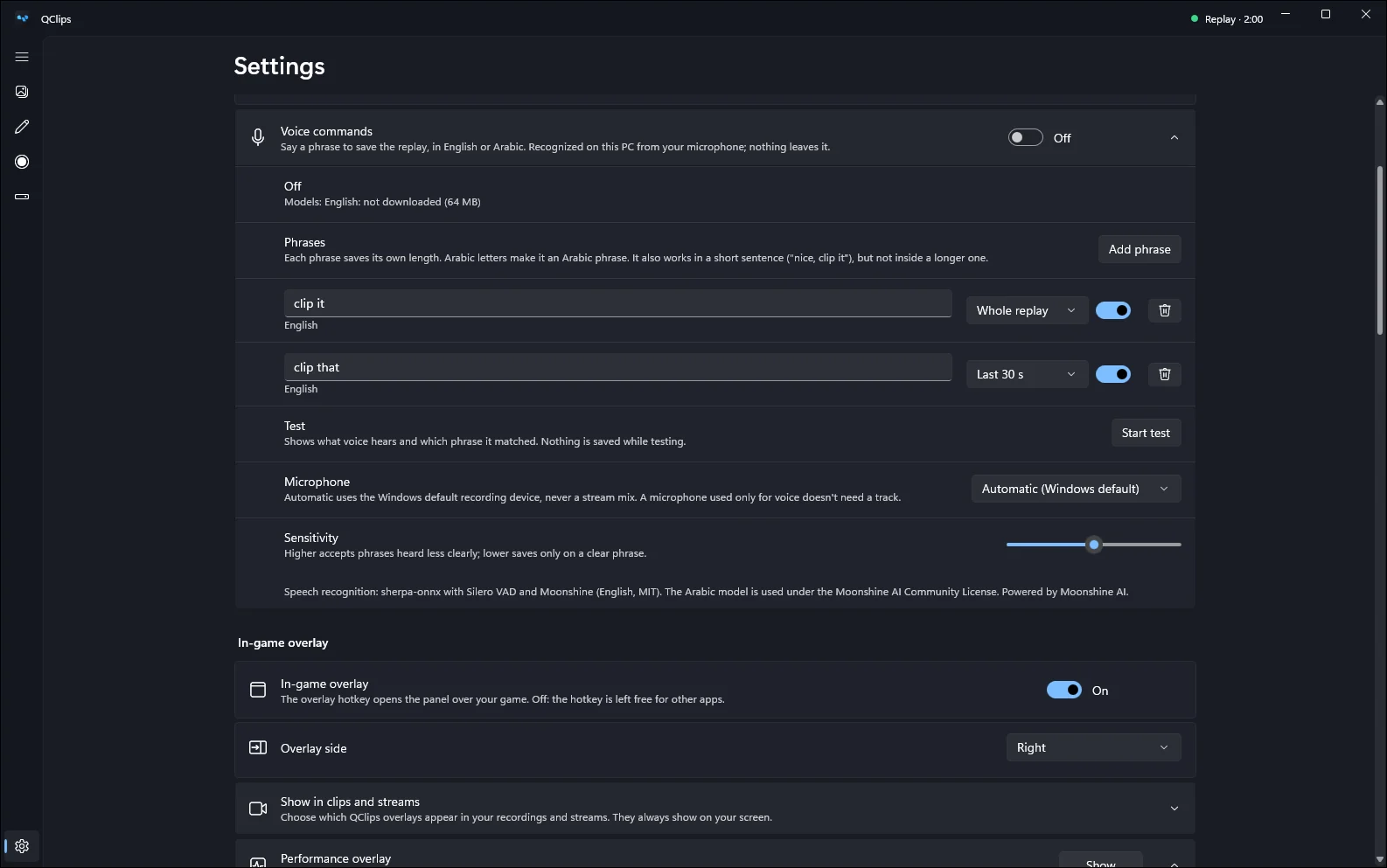
Hands busy? Say the phrase and QClips saves the replay. It catches it mid-sentence, like “nice, clip it”, and it understands Arabic as well as English.

  • Recognized on your PC. What the microphone hears never leaves your computer, and it works offline.
  • Your phrases, your lengths. Give each phrase its own length: 15 or 30 seconds, 1 to 2 minutes, or the whole replay.
  • Test it first. Start test shows what it heard and which phrase matched. The sensitivity slider sets how clear a phrase must be.
  • One download, once. The voice model comes from Settings when you turn voice on: about 67 MB for English, 164 MB for Arabic, 210 MB for both. The Arabic model is Powered by Moonshine AI.
QClips Settings, Voice commands: the phrases “clip it” and “clip that” with their lengths, the microphone, sensitivity and a Start test button.

2In the game

Or press Alt+Z without leaving the game.

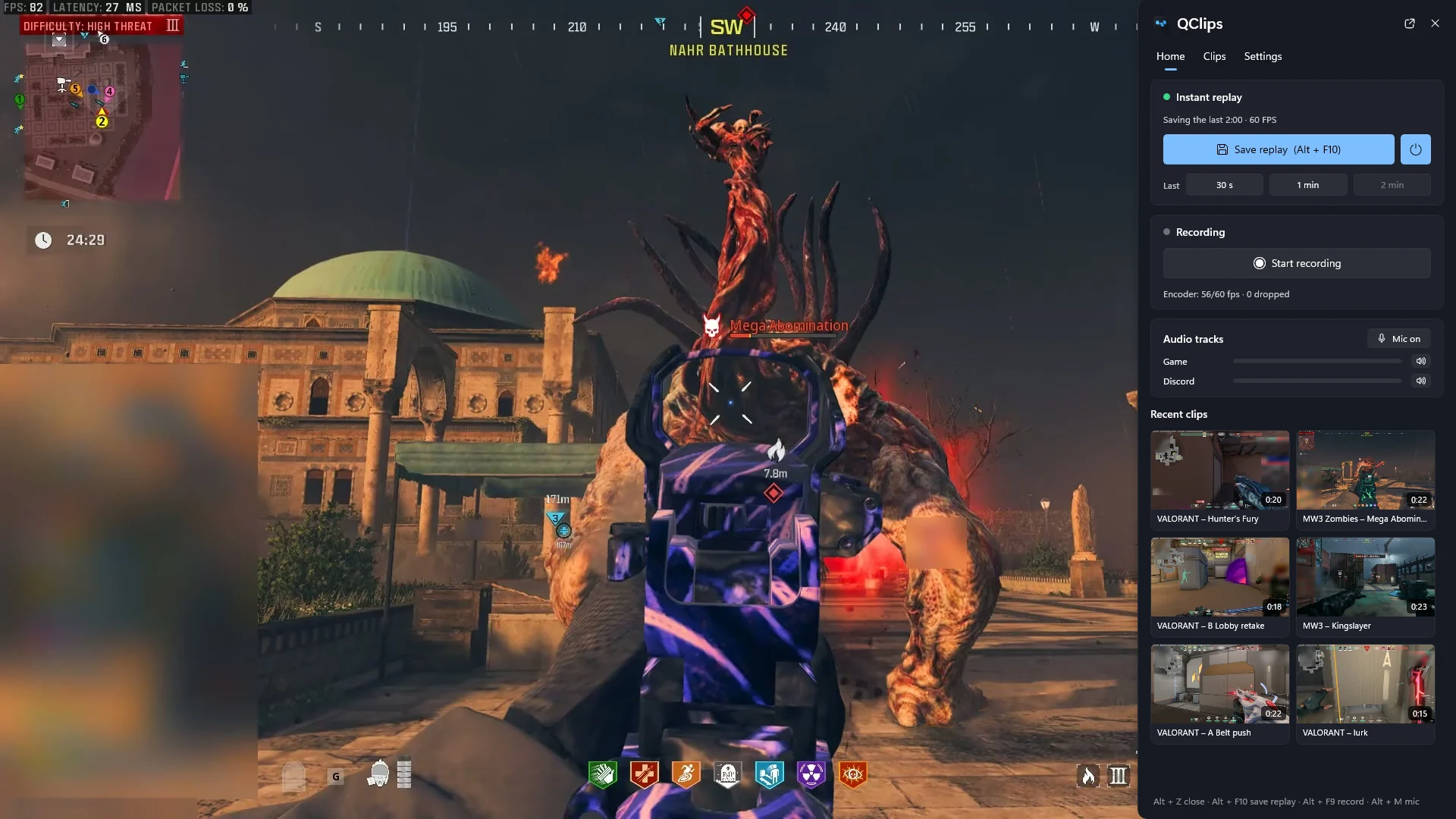
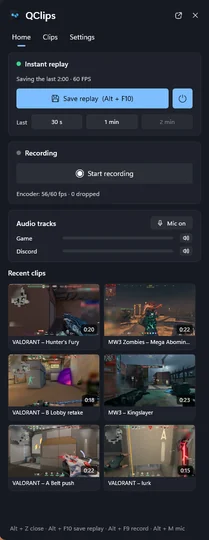
A panel slides in from the edge of your main screen. Save the replay or just its end, start a recording, check your audio and open your latest clips.

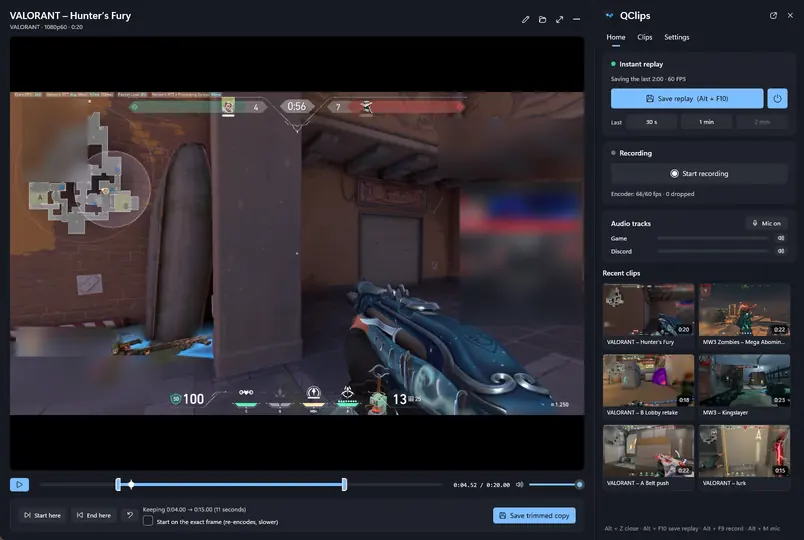
  • Quick trim in the panel. Drag the two ends and save a trimmed copy without opening the editor.
  • Save just the end. The last 30 seconds, 1 minute or 2 minutes of the replay.
  • Your call what shows. Choose whether the panel, the “Clip saved” notice and the performance line appear in your clips and streams.
  • Hotkeys for everything. By default Alt+F10 saves the replay, Alt+F9 starts a recording and Alt+M switches the mic.
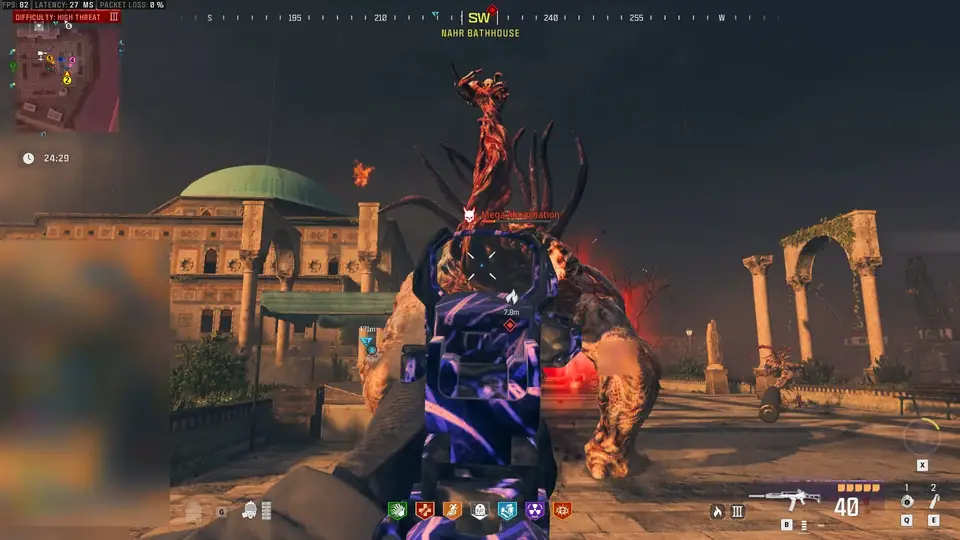
The Alt+Z panel open on the right edge of the screen over Call of Duty: Modern Warfare III Zombies, with Instant replay, Recording, Audio tracks and Recent clips.

3Editor

Trim it to the moment. Size it for Discord.

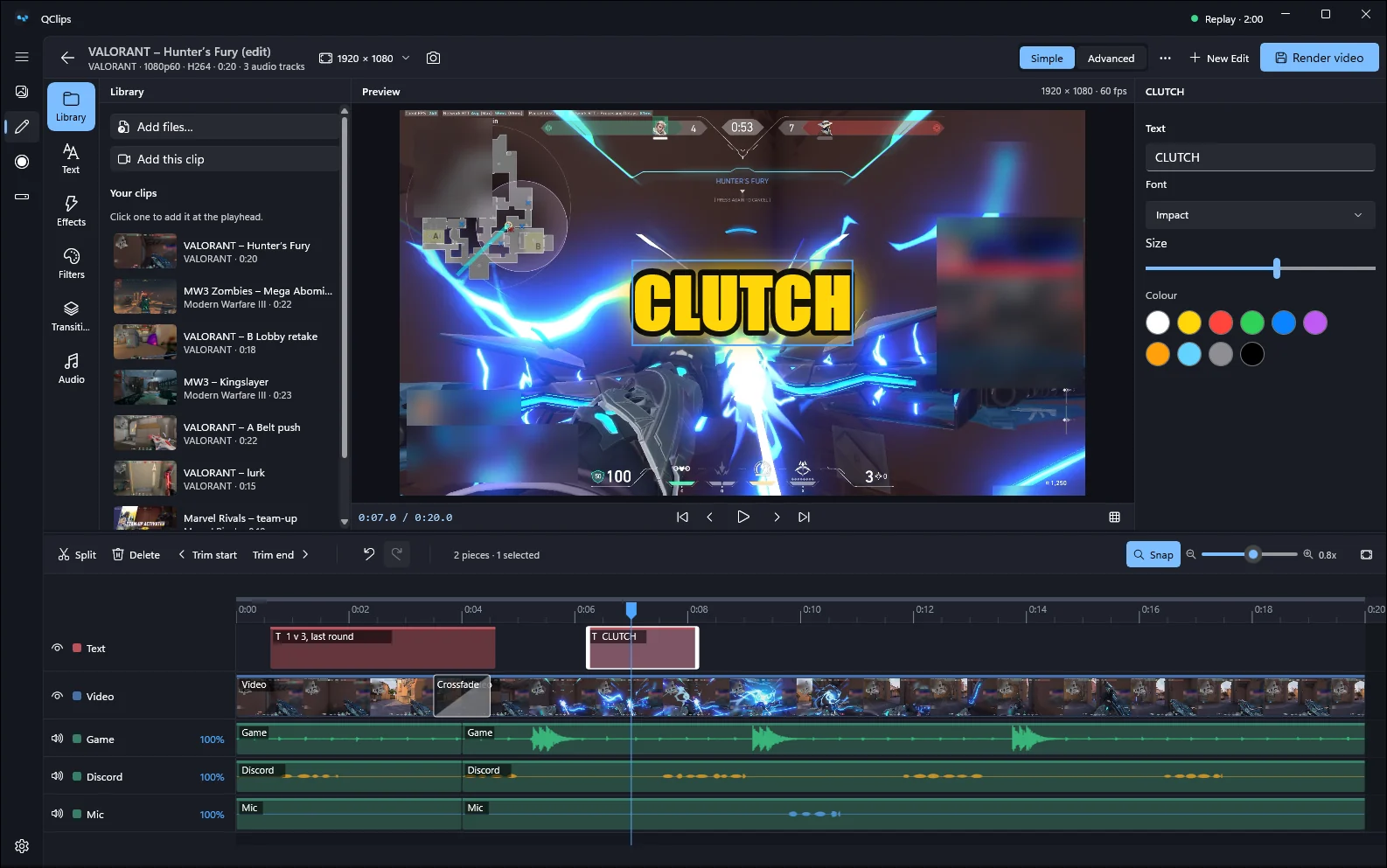
Trim, split, change the speed (keeping the pitch), freeze a frame, add titles, captions, effects, filters and transitions. The Discord 20 MB and Discord 50 MB presets encode in two passes so the file fits.

  • One editor. Your library, text, effects, filters, transitions and captions next to one timeline, with tracks and keyframes when you want them.
  • Captions, written for you. Arabic (Gulf and Saudi first, also Egyptian, Levantine and Iraqi) or English, timed word by word, made on your PC.
  • Auto Cut. Removes the silent parts of a clip; one Undo brings them back.
The QClips editor: a “CLUTCH” title over a VALORANT clip at Sova’s Hunter’s Fury, a lower third, and a timeline with a cut, a crossfade and the audio tracks.

4Sound

Every sound on its own track.

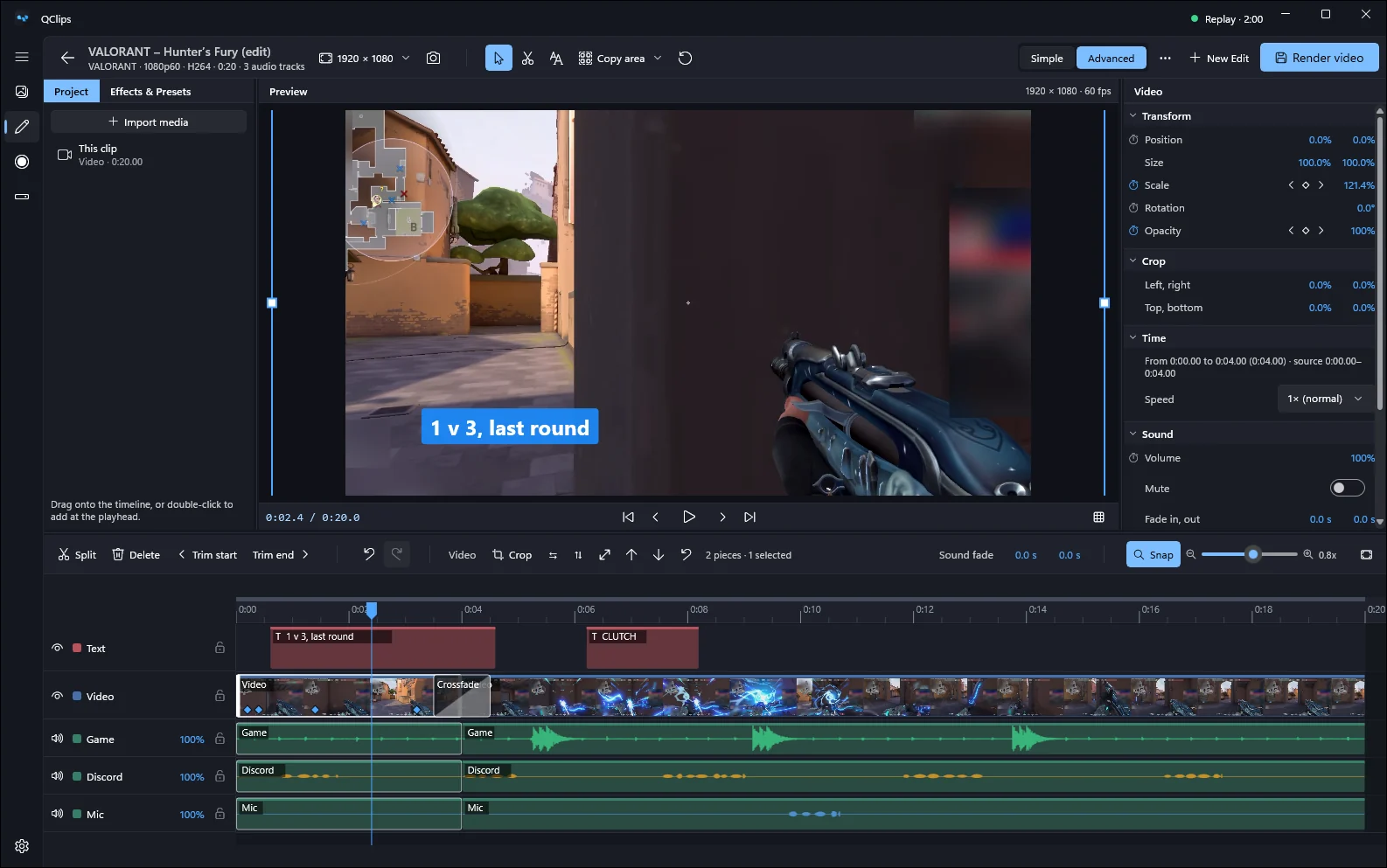
Game, voice chat, microphone and any device each get their own track, plus a Mixed track for sharing. Friend too loud? Turn them down later in the editor.

  • Per-app sound. Put one program on its own track (Discord, Spotify, a browser), the current game, or everything except QClips.
  • No echo in Mixed. QClips warns when a program would be heard twice and keeps it out of the mix. A limiter keeps loud moments from crackling.
  • Without touching the game. Per-app audio never opens the game’s process.
The editor with keyframes on the video and the Mixed, Game, Discord and Mic tracks on the timeline.

5Lite

Just the recorder, if that’s all you want.

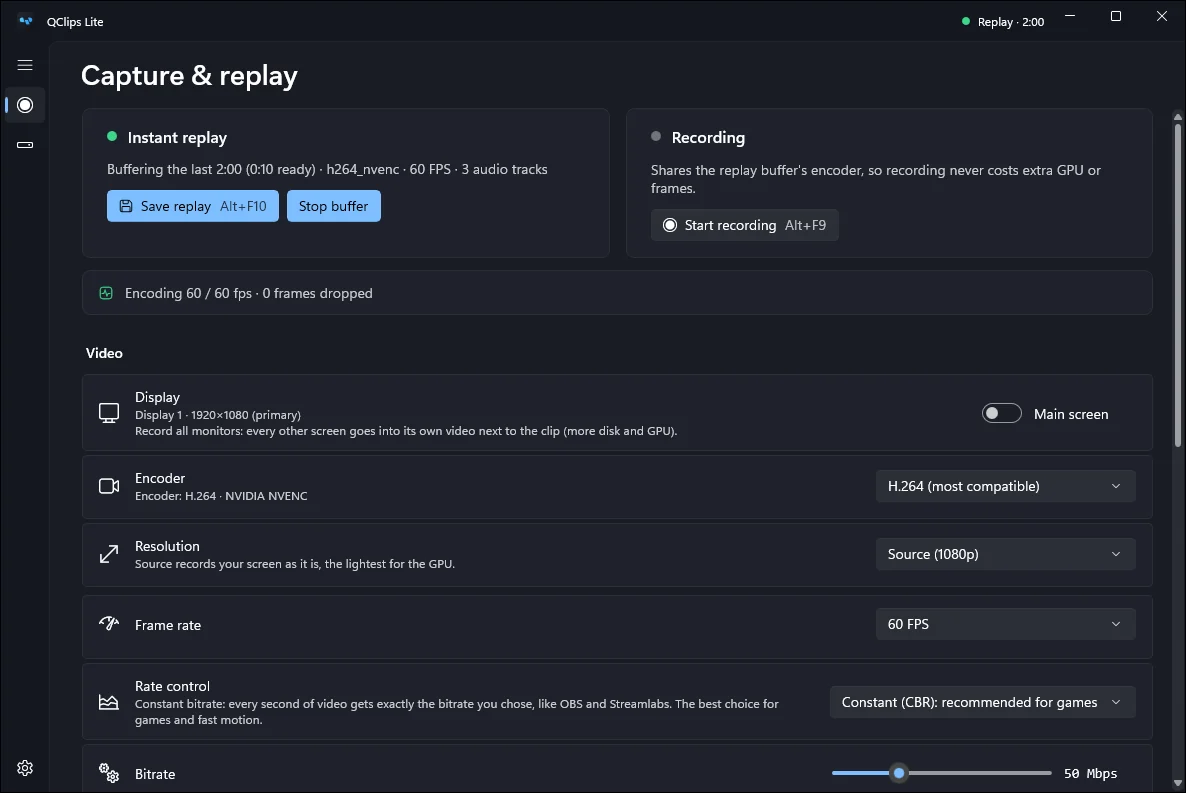
QClips Lite runs only the recorder: replay, recording and hotkeys, with a small settings window in the tray. Nothing shows over your games: the save sound tells you a clip was saved. Switch back any time; your clips and settings stay.

  • Stays out of your frames. Recording runs on your graphics card’s encoder (NVIDIA NVENC, AMD AMF or Intel Quick Sync), so the game keeps the CPU.
  • Saving never waits. Hotkeys and voice work even while the editor is busy.
  • Small updates. Only what changed is downloaded, often under a megabyte, and never while you record.
QClips Lite: the recorder’s settings window with Instant replay, Recording and the video settings.

Try the panel.

These are pictures of the real Alt+Z panel and notification, taken from QClips running over a game. Open the panel, save a clip, or open the newest clip for a quick trim.

Keys work too while this is on screen: Alt+Z, Alt+F10 and Esc.

The editor, screen by screen.

Pick a piece, add a title or captions, choose a look. Tracks and keyframes are on the same timeline. Then render it at the size Discord takes, or share it straight from QClips.

The editor with a “CLUTCH” title over a VALORANT clip and its timeline.
The editor’s Text panel with its title styles.
The editor with keyframes and the Text, Video, Mixed, Game, Discord and Mic tracks.
The Render video dialog and its presets.

Everything in its place.

Your clips, the recorder and your disk space, each on its own page.

Library

Every clip with its thumbnail and length. Open one to watch it, trim it or edit it.

The QClips library: a grid of clips from VALORANT, Modern Warfare III, Marvel Rivals and Battlefield 6, with thumbnails and lengths.

Capture and replay

Replay length, quality, encoder and frame rate on one page. The replay keeps running while you play.

The Capture and replay page with Instant replay on and the video settings.

Storage

See how much space your clips take, move them all to another drive with their edits, and set an optional size limit. Favourites are kept.

The Storage page: the space clips take, the clips folder, file names and the storage limit.

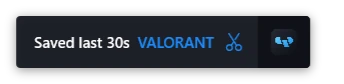
“Clip saved”, over the game

A small notice on the edge of the screen when a clip is saved, by key or by voice. Keep it out of your clips if you like.

The “Saved last 30s” notification on the right edge of the screen over a game.

New in 2.1.

Captions, sharing, better screenshots and QClips in Arabic. Everything that’s new

Edit and share

  • Captions and subtitles. The editor writes them for the whole clip, word by word, in Arabic or English, on your PC. Edit any line, pick a style, burn them in or save an .srt.
  • Auto Cut. One button removes the silent parts; you choose how much to keep around speech.
  • Share from inside QClips. TikTok, YouTube Shorts, Instagram Reels and X: trim, frame it vertically, add a title. You press the site’s own Post button; QClips never posts for you.
  • Simpler render presets. Original, High, Discord 20 MB and Discord 50 MB.

Around the app

  • Screenshots. One monitor, all of them, the window in front or a region, straight to your clipboard.
  • Copy text from the screen. Select an area and its text is copied, in English, Arabic and your other Windows languages.
  • HDR monitors. Clips look right everywhere, or record HDR10 if you want it.
  • QClips in Arabic. Every page, menu and the Alt+Z panel, right to left, and the installer too.
  • Settings in pages, the way Windows 11 does it, with search. Pause and resume a recording into the same file.

In sync wherever you play it.

QClips reads the exact moment each piece of sound was captured instead of guessing a delay. In our tests sound and picture stayed within about 12 ms at 60 and 120 FPS, in Windows’ own player, in Discord and across every track.

Drag the handle. The flash in the picture and the bang in the sound should line up.

Light on your PC

Recording runs on your graphics card’s encoder (NVIDIA NVENC, AMD AMF or Intel Quick Sync, in H.264, HEVC or AV1), so the game keeps the CPU. No GPU encoder? QClips records with the CPU instead.

  • Small updates. Only what changed is downloaded, often under a megabyte, and never while you record.
  • Saving never waits. Hotkeys and voice work even while the editor is busy.

Safe with anti-cheat

QClips records the screen the way Windows’ own tools do (Windows Graphics Capture) and the sound through Windows’ audio system. It never interacts with the game.

  • No injection. Nothing is loaded into the game, and it is never hooked.
  • Hands off the process. QClips never opens or reads the game’s process, even for per-app audio.
  • No input hooks, no admin. No keyboard or mouse hooks, and it installs and runs without administrator rights.

Keep your next clutch.

QClips is free. It installs for your user only, needs no account and keeps itself up to date.

Recommended QClips-Setup.exe about5MB

Small and quick: it downloads the rest while it installs.

Download
Offline QClips-Setup-Offline.exe about85MB

Everything inside, for a PC without a good connection.

Download offline installer

Needs Windows 10 version 2004 or later, or Windows 11, 64-bit. A graphics card with a video encoder is recommended. Voice models download separately from Settings when you turn voice commands on. All releases and what’s new

Questions

Windows says “Windows protected your PC”. Is that normal?

Yes. The installers aren’t code-signed yet, so Windows SmartScreen warns the first time. Click More info, then Run anyway.

Download QClips only from this site or its GitHub releases page.

Where are my clips saved?

In your Videos folder, under Videos\QClips\Clips, in a folder for each game or app. To keep them all in one folder instead, pick "All clips in one folder" in Settings, Storage (the game stays in the file name).

Settings, Storage shows how much space they take, lets you move every clip to another drive with its edits and favourites, and can set an optional size limit (the oldest clips go to the Recycle Bin; favourites are kept).

Is it really free? Do I need an account?

Yes, it’s free, with no ads and no account. There is no cloud and nothing is uploaded: your clips stay on your PC until you share them.

Does QClips collect any data?

No. QClips sends no usage data, analytics or crash reports. It only goes online to check for updates, to download the voice or captions models once if you use them, and when you share a clip to a site yourself.

How big are the voice models?

They download once, only if you turn voice commands on: about 67 MB for English, about 164 MB for Arabic, or about 210 MB for both. After that, voice works offline.

Can it get me banned in games with anti-cheat?

QClips doesn’t interact with games at all: no injection, no hooks, it never opens the game’s process and it needs no administrator rights. It records the screen with Windows Graphics Capture, the way Windows’ own tools do, and the sound through Windows’ audio system.

Why did my VALORANT clips show the desktop?

Many screen recorders, and QClips before 2.1, capture the screen with Desktop Duplication, all the time. After a while of that, VALORANT’s anti-cheat hides the game’s window from every screen capture until the PC restarts, so clips show what is behind the game, usually the desktop.

QClips 2.1 records with Windows Graphics Capture instead, so this no longer happens. If it already happened before you updated, restart your PC once.

What PC do I need?

Windows 10 version 2004 (build 19041) or later, or Windows 11, 64-bit. A graphics card with a video encoder (NVIDIA NVENC, AMD AMF or Intel Quick Sync) is recommended; without one, QClips records with the CPU. The app takes about 250 MB, plus room for your clips.

Is QClips available in Arabic?

Yes. The whole app, the Alt+Z panel and the installer are in Arabic, right to left. QClips follows your Windows display language; to choose yourself, go to Settings, General, Language. Voice commands and captions understand Arabic and English. This site is in Arabic too.

Are the pictures on this page real?

Yes. Every screen on this page is a real screenshot of QClips, taken on Windows, and the gameplay in it is real too: VALORANT, Call of Duty: Modern Warfare III, Battlefield 6 and Marvel Rivals, recorded by the QClips team. Player names, chat and anything personal are blurred.